Distance
Id prefix: DIST · Elements: exactly two · Selection filter: FACE / VERTEX / EDGE · Entry 4 of 16 in the panel's + dropdown
Distance holds a gap. It is one of the two constraints that carry a number, and the number is signed: it is an offset along the base face's outward normal, so a negative value puts the other element on the far side. Pairings without a face use the magnitude. A new Distance created without a value adopts the separation the parts already have, so it moves nothing; one created with a value (from a script, the MCP or a dialog) moves the parts to it.
It is also one of the two that are draggable in the 3D view. With Show Constraint Graphics on it draws a real arrow — the perpendicular from its base face, in model scale, so the arrow's length is the distance — and dragging the arrowhead edits the value live, as one undo step. See the Assembly workbench.
Parameters
| Parameter | ||
|---|---|---|
elements | two elements (face / vertex / edge) | The pair to hold apart. |
distance | number, default 0 | Signed target along the base face's outward normal. Expression-capable. |
facing | aligned / opposed dropdown, unset on a new constraint | Face-face only: the normals aligned or opposed. A new constraint takes the facing it is placed with and shows it here after its first solve; Flip picks the other one. |
limit | boolean, default false | Limit mate: hold the distance anywhere between minimum and maximum instead of at distance. |
minimum | number, default 0 | Limit mate: the smallest allowed distance, signed exactly as distance. Expression-capable. |
maximum | number, default 10 | Limit mate: the largest allowed distance. |
Limit
With limit on, the gap is free anywhere in the range and the solve only steps in at the ends: a slider that may travel from 1 mm to 4 mm stays where you leave it inside that range, and a drag that tries to take it further stops at the end it is pushing against. If the part at the other end is free, a drag pulls it along instead, like a chain; the drag stops only when the chain reaches something grounded. The row reads Satisfied … Limit 1 to 4 while it is inside the range. With limit on, the form shows minimum and maximum in place of the single target, and the viewport handle is not draggable: a range has no single value for it to edit. A minimum above the maximum is refused with a message on the row.
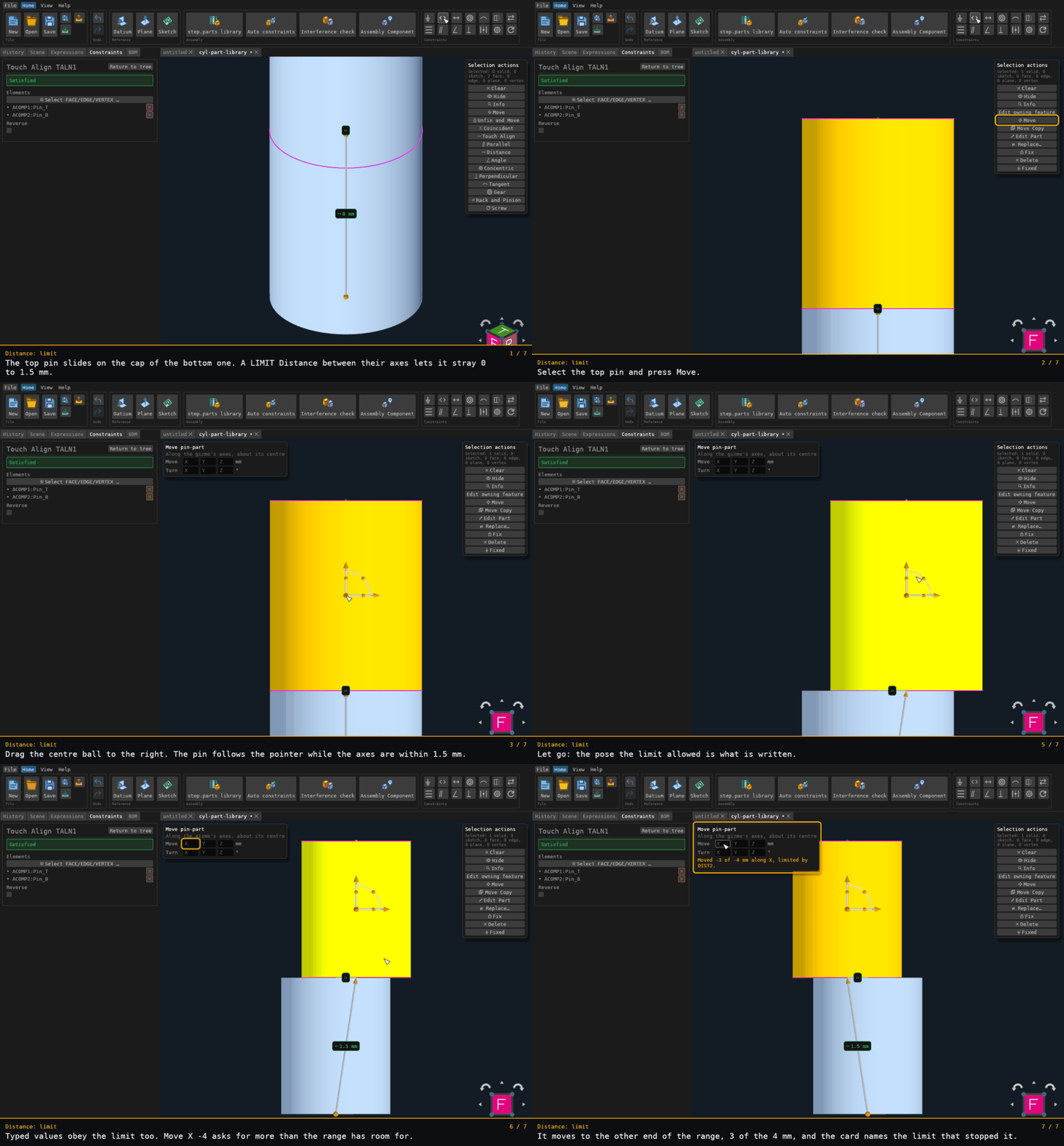
A pin touch-aligned on another, with a limit Distance of 0 to 1.5 mm between their axes. A drag that asks for 2 mm stops at 1.5 mm while the button is still down. A typed Move X -4 on the Move card goes to the other end of the range: it moves 3 of the 4 mm, and the card names the limit that stopped it.
Recorded from the running app by BREP_mcp/tests/videos/constraint-distance-limit.json; regenerate every walkthrough
with ./build.sh docs-videos.
Walkthrough
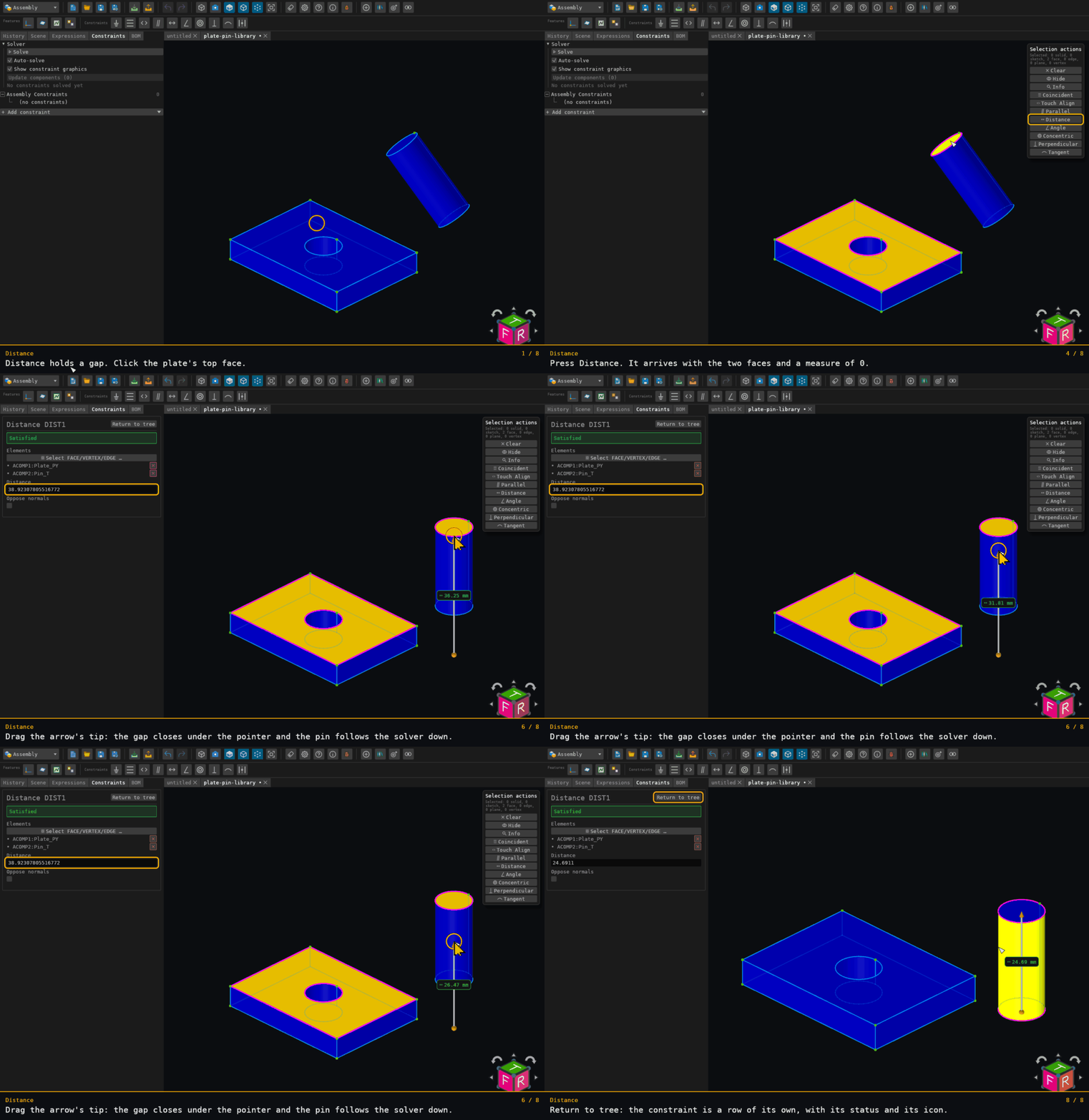
Pick the plate's top face and the pin's end cap, then drag the arrow's tip. The value previews while the button is down; on release it commits and the assembly re-solves, so the pin travels with it. The form's field takes a typed number just as well.
The result is checkable against Touch Align, which seats the cap on the plate at component y = −18. The recorded drag sets 24.6911 mm, so the pin lands at y = 6.6911.
Offered for two elements on two distinct components — see where constraints are offered.