Touch Align
Id prefix: TALN · Elements: exactly two · Selection filter: FACE / EDGE / VERTEX · Entry 2 of 16 in the panel's + dropdown
Touch Align seats one element against another: the two are brought together and made to face each other. It is the flush mate — a bolted joint, a part on a table, a shoulder against a boss — and the one Auto constraints reads most placements back as.
Two flush faces pointing the same way are aligned, not touching. Which of the two a
constraint holds is its Facing (facing): taken from the pose it was created at, shown
in its form, and changed there or with Flip.
Parameters
| Parameter | ||
|---|---|---|
elements | two like elements (face / edge / vertex) | The pair to seat against each other. |
facing | aligned / opposed dropdown, unset on a new constraint | Aligned or opposed. A new constraint takes the facing it is placed with and shows it here after its first solve; Flip picks the other one. |
Walkthrough
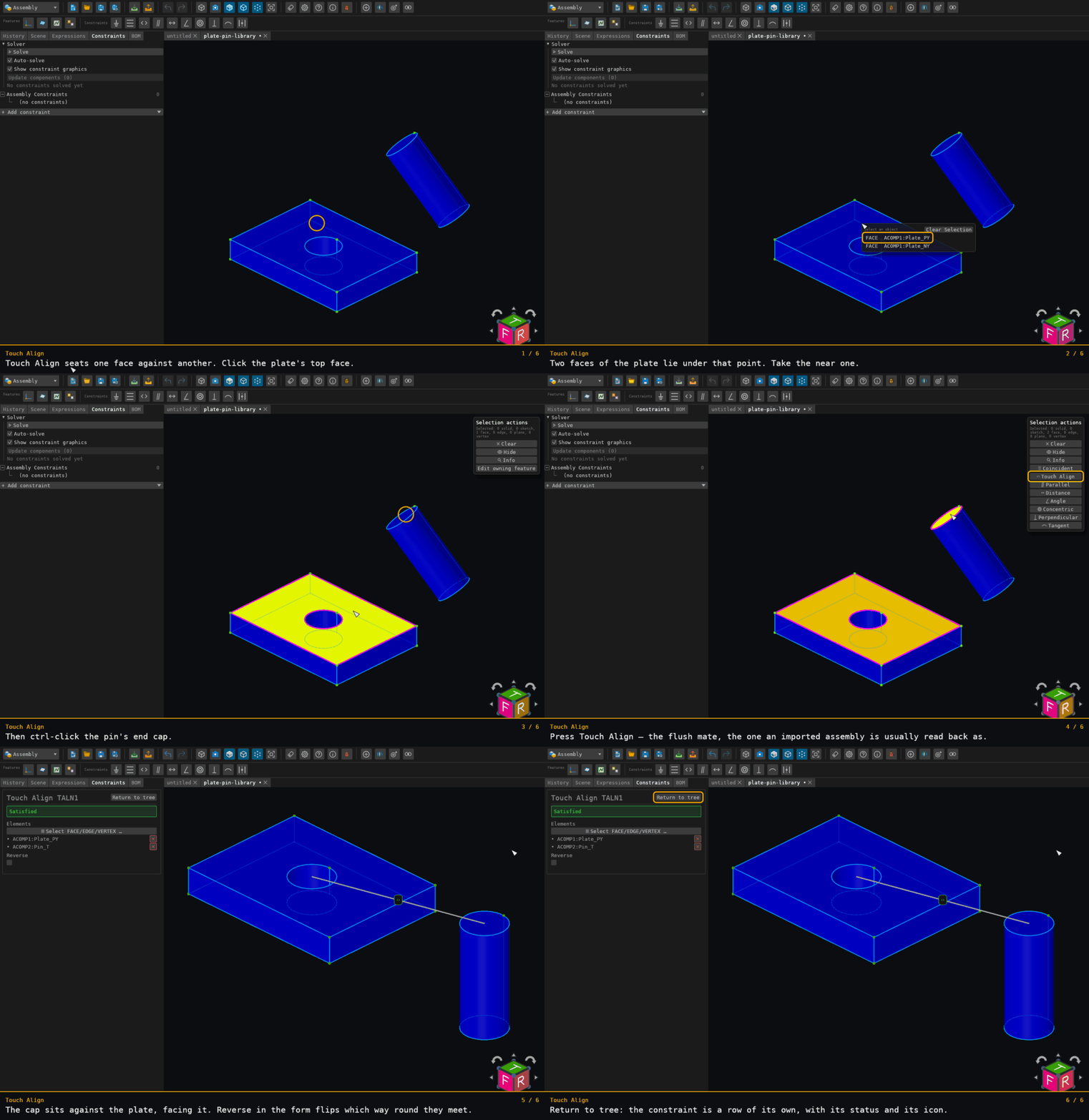
The plate's top face and the pin's end cap. The cap is 24 mm along the pin's own axis, so seating it on the plate's face at y = 6 puts the component at y = −18. The other two translation components are untouched — a plane-plane mate moves along the normal and no further — and the spin left in the plane stays free.
Offered for two elements on two distinct components — see where constraints are offered.