docs / panels / Status Bar
Status Bar
The strip along the bottom of the window. Its left side changes with what you are doing:
- Modeling: the Pickable filter — which kinds of thing a click in the 3D view can
select (components, solids, sketches, faces, edges, vertices, planes). On mobile or
when space is tight, the whole filter is one button whose caption says what is
pickable —
Filter: All,Filter: None, one or two kinds by name (Filter: Face, Edge), or a count (Filter: 3 of 7). Tap it to show or hide the choices in a popup. Closing the popup keeps your filter choices; opening it does not enlarge the status bar. While a reference field is picking, the caption readsFilter (locked): …with the kinds the field accepts. On mobile the status bar is hidden while a dialog's field picks; the button rides in the pick bar over the view instead. - Sketching: the sketch's status — its name, degrees of freedom, how many entities are selected, undo/redo and Lock.
- An eCAD editor: where the pointer is and what is under it.
The Working Indicator
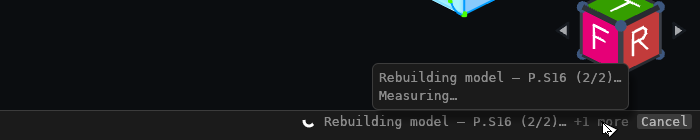
Its right end is the application's one answer to "is anything happening?". While the application is working, a spinner turns there with a label that says what it is doing:
| Label | What is running |
|---|---|
Rebuilding model — P.S16 (2/2) | the feature history is being rebuilt; the label names the feature executing and how far through the history it is |
Rebuilding <document> | the same, in a document open in another tab |
Measuring | an Info window's measurements |
Loading exact geometry | the exact edges a drawing sheet needs |
Drawing sheet views | a drawing sheet's hidden-line views |
Reading STEP structure | a STEP file's assembly structure, before an import |
Reconstructing mesh | an STL / OBJ import being rebuilt as CAD surfaces |
Downloading <part> / Searching STEP parts | the STEP parts library, over the network |
Loading document | a document named in the address, at startup |
- It shows on every tab and workbench. It used to be a spinner on the History panel's header, which you could only see with the History tab open.
- It appears only once something has been running for 0.2 s, so an edit that rebuilds in a frame or two does not make it blink.
- After 3 s the label adds how long the work has taken (
… 4 s,… 1 m 05 s). - When several things are running, the label names the most important one — a rebuild
first — and
+N morecounts the rest. Hover the label or+N moreto list them all. - Cancel appears while the named work is a rebuild. It stops the run and the model keeps the last completed result; the History panel notes which feature the run was stopped on.
- When nothing is running the right end is empty.