Family Table
A family is a part that comes in many sizes: socket head cap screws M3 to M6 in several
lengths, a bracket in five widths. You model it once, as a .fbrep family seed whose
sizes are driven by expressions, and you list every size in the family's
table. Each row of the table is one member, a normal part that Generate writes out
as <part number>.nbrep.
The Family table dock tab is where you edit that table. It works like a spreadsheet.
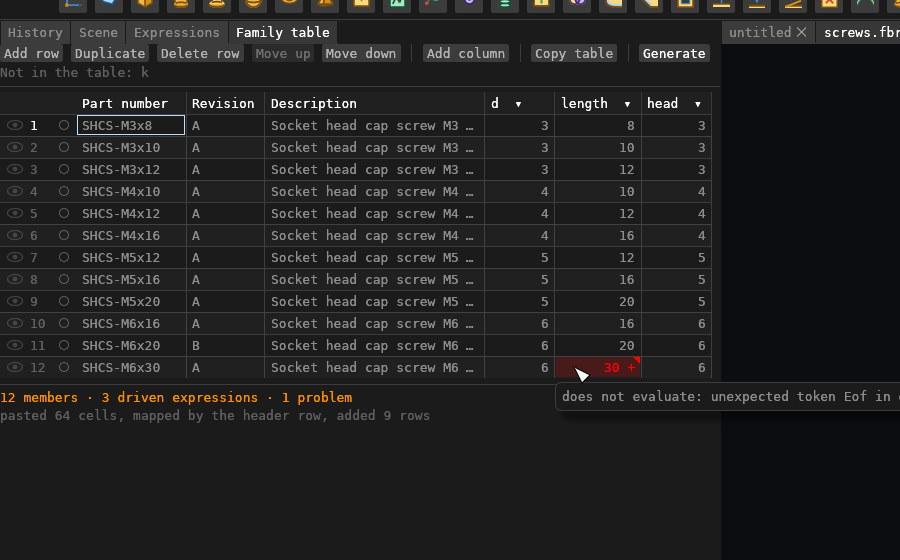
When it is on screen
It is on screen exactly while the document you are editing is a family seed (.fbrep),
whatever workbench you are in. A normal part (.nbrep) or a template (.tbrep) does not
show it.
The columns
| Column | What it holds |
|---|---|
| # | The row number, and a mark showing whether the member's file exists: |
| Part number | Typed by you. It is the member's file name (<part number>.nbrep), so it must be a valid file name and unique in the table. |
| Revision | The member's revision, kept for the PLM. It does not affect the file name. |
| Description | Free text. Generate writes it into the member's part attributes. |
| one per expression | The value this member gives that expression, as expression text: 12, d * 2.5, Math.max(d, 4). |
The line above the table names the model's expressions that are not yet columns.
A blank expression cell means "use the model's own definition". It shows that definition dimmed, and hovering it says so. To change it for this member, type a value.
Adding and arranging
- Add row adds an empty row below the selected row, or at the end.
- Duplicate copies the selected row below itself and gives it a new part number
(
M3x8becomesM3x8-copy). Edit the new number. - Delete row, Move up and Move down act on the selected row. Deleting a row does not delete a member that was already generated from it. The member stays where it is, so no assembly that uses it breaks.
- Add column lists the model's expressions that are not yet columns. Pick one to add it.
- Click an expression column's header for its menu: Relabel… gives the column a display name (the expression name stays in the hover text), Move left and Move right reorder the columns, and Remove column removes the column and its values from every row.
Editing cells
Click a cell to select it. Then:
| Key | Does |
|---|---|
| Arrow keys | Move the selection |
| Tab / Shift+Tab | Move right / left, wrapping to the next or previous row |
| Typing | Starts editing the cell, replacing its text |
| Enter, F2, double click | Edit the cell's current text |
| Delete / Backspace | Clear the cell |
| Ctrl+C | Copy the cell |
| Ctrl+V | Paste (see below) |
While you are editing a cell, Enter commits it and moves down, Shift+Enter commits and moves up, Tab and Shift+Tab commit and move sideways, ↑ and ↓ commit and move, and Escape discards the edit. Clicking somewhere else also commits it.
Each committed cell is one step for Undo (Ctrl+Z) and Redo. So is each row or column
operation and each paste. Any of them marks the tab as unsaved. The table is saved inside
the .fbrep file.
Pasting from a spreadsheet
Families are often laid out in a spreadsheet first. Copy a block of cells there, select a cell here and press Ctrl+V:
- A block without a header row lands as it stands, with its top-left cell on the selected cell. Rows are added below the table as needed. Cells that fall to the right of the last column are dropped, and the status line says how many.
- A block whose first line is a header row is matched by header instead:
Part number(alsoPN,Part no),Revision(Rev),Description(Desc), a column's name or label, or the name of any expression the model defines. An expression that is not yet a column becomes one. The rows below the header are written from the selected row down. Every cell of the first line must be a header the table recognises. Otherwise the first line is pasted as data.
The whole paste is one undo step. Copy table puts the whole table on the clipboard as tab-separated text with a header row, ready for a spreadsheet. Pasting that text back gives the same table.
Previewing a row on the model
Each row starts with an eye. Click it to see that member on the model: the displayed part rebuilds with the row's values, worked out exactly as Generate would write that member.
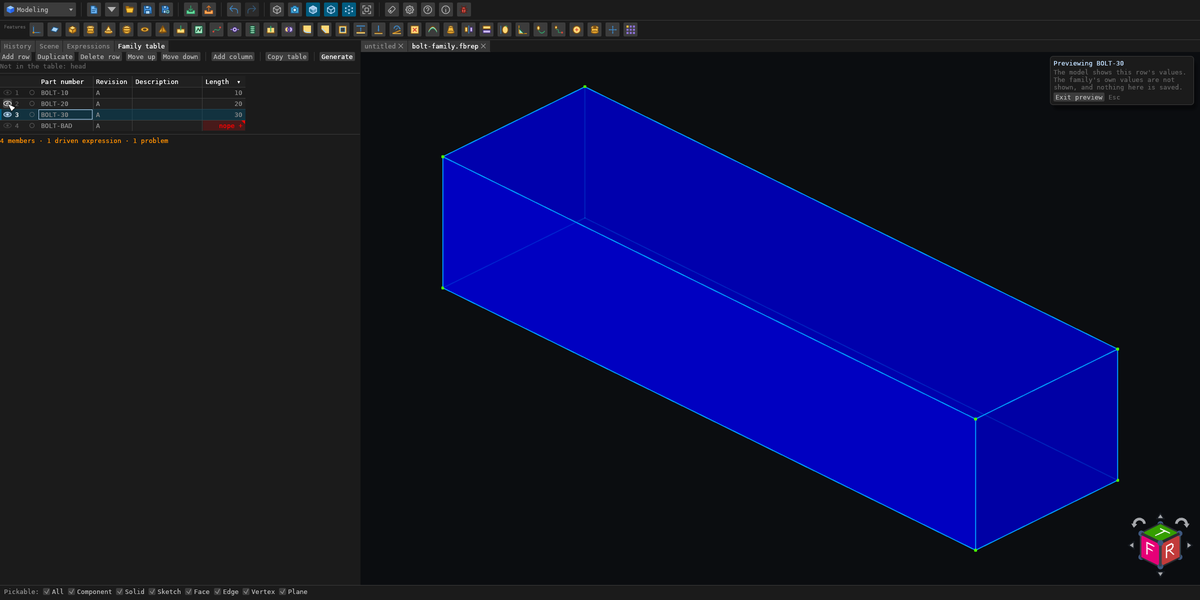
- The previewed row is highlighted, and a card over the 3D view says Previewing BOLT-30, with an Exit preview button.
- ↑ and ↓ move the preview up and down the table, so you can flip through the sizes. While a preview is on, it follows the selected row. Clicking another row's eye, or a cell in another row, previews that row. Rapid stepping does not queue up rebuilds: only the last row you land on is built.
- Esc, Exit preview, or the previewed row's eye again show the family's own values.
- The preview changes nothing in the family. The tab does not become unsaved, nothing is added to Undo, and Save writes the family's own values. Closing the tab or switching to another document ends the preview.
- Editing a cell of the previewed row updates the preview when you commit the cell.
- Editing the model ends the preview first. That means a feature, an expression in the Expressions pane, Undo or Redo. The edit then applies to the family's own values, so nothing previewed ends up in the saved model.
- A row whose values do not evaluate cannot be previewed. The card gives the reason and says what the view still shows (the last row that could be shown, or the family's own values). A row whose values evaluate but break a feature is previewed anyway. The card counts the feature errors, and the History tab shows each one, as it would when you open the generated member.
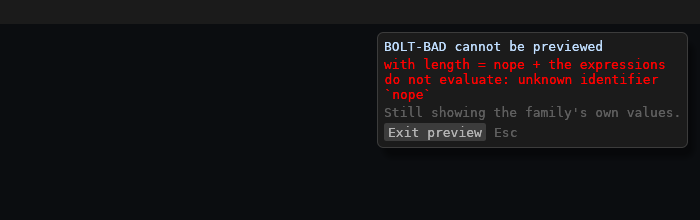
Measurements and exports taken while previewing are of what is shown: the previewed row. The
card says so, the Export dialog warns in orange (Previewing BOLT-20: STEP, IGES, meshes,
drawings and flat patterns export BOLT-20…), and an export raises a notice naming the row.
The .nbrep recipe export is the document, so it keeps the family's own values.
Problems, as you type
A cell with a problem is tinted red and flagged in its corner. Hover it for the reason. The count of problems is under the table.
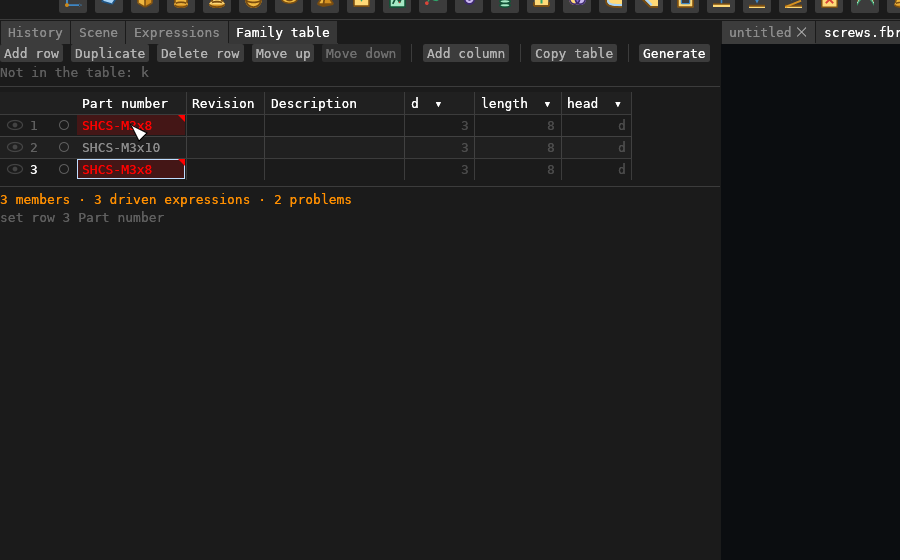
- No part number.
- A duplicate part number. Both rows are marked. Part numbers are compared without
case, because
A1.nbrepanda1.nbrepare one file on Windows and macOS. - A part number that cannot be a file name. For example, one containing
/ \ : * ? " < > |, a Windows device name such asCON, or a name ending in.fbrepor.tbrep. - A value that does not evaluate. The row's values are substituted into the model's
expressions, the same way Generate does it, and the whole source is evaluated. The cell
that fails is the one marked. A value that evaluates shows its number on hover
(
= 4.5). - A column whose expression the model no longer defines, for example after you rename an expression. The header turns red and its cells are tinted. Generate cannot drive a missing expression.
These checks are the same ones Generate makes. They check expressions only. A row can evaluate cleanly and still make geometry that fails, for example a head too large for the sketch it sits on. The member then shows that feature error when you open it.
Generate
Generate writes every row as its own part, <part number>.nbrep, in the family file's
folder. A cell you are still typing in is committed first. The family must have been saved,
so that it has a folder.
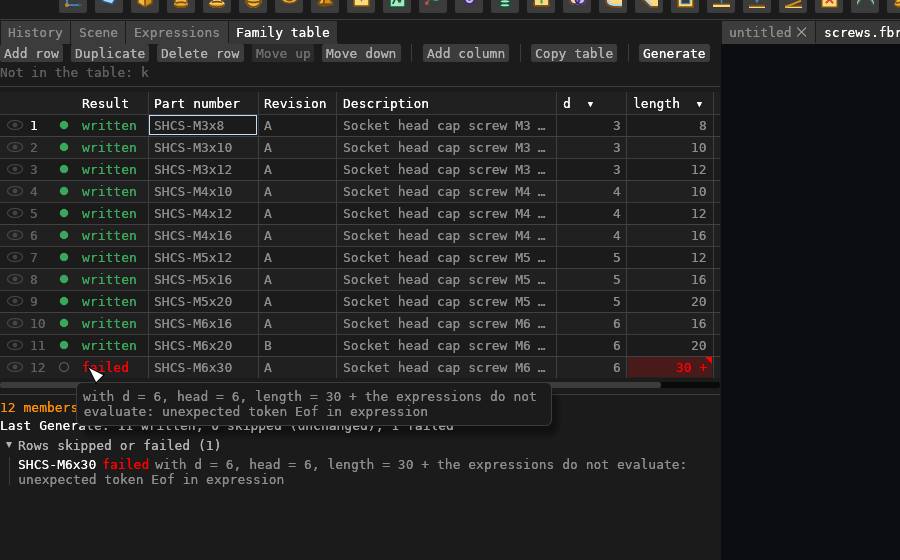
Afterwards the table gains a Result column, left of the part number, with one outcome per row (hover it for the reason):
- written: the member was created or overwritten;
- skipped: the row, and the family's model, are unchanged since that member was last generated;
- failed: the row could not be written. Hover it for the reason, for example a duplicate part number, a value that does not evaluate, or a write error.
The counts are under the table (Last Generate: … written, … skipped (unchanged), …
failed), and the rows that were skipped or failed are listed in full below them, failures
first. One failed row does not stop the others. The / marks update to show which
members now exist.
Members are not released by Generate. You release each one separately.
Automation
The pane publishes its state as __brepFamily (the table, selection, problems, member
marks, last report, and preview: the row previewed, whether its values are applied, what
the view shows, and the message for a row that does not evaluate) and its widget rects under family: (listed by brep://widgets). A
script pastes a block with the paste command, which delivers the text the way Ctrl+V does.